
Hiding a Proxied Domain
After setting up a custom domain, your proxied image URLs will still show the source URL. For example:
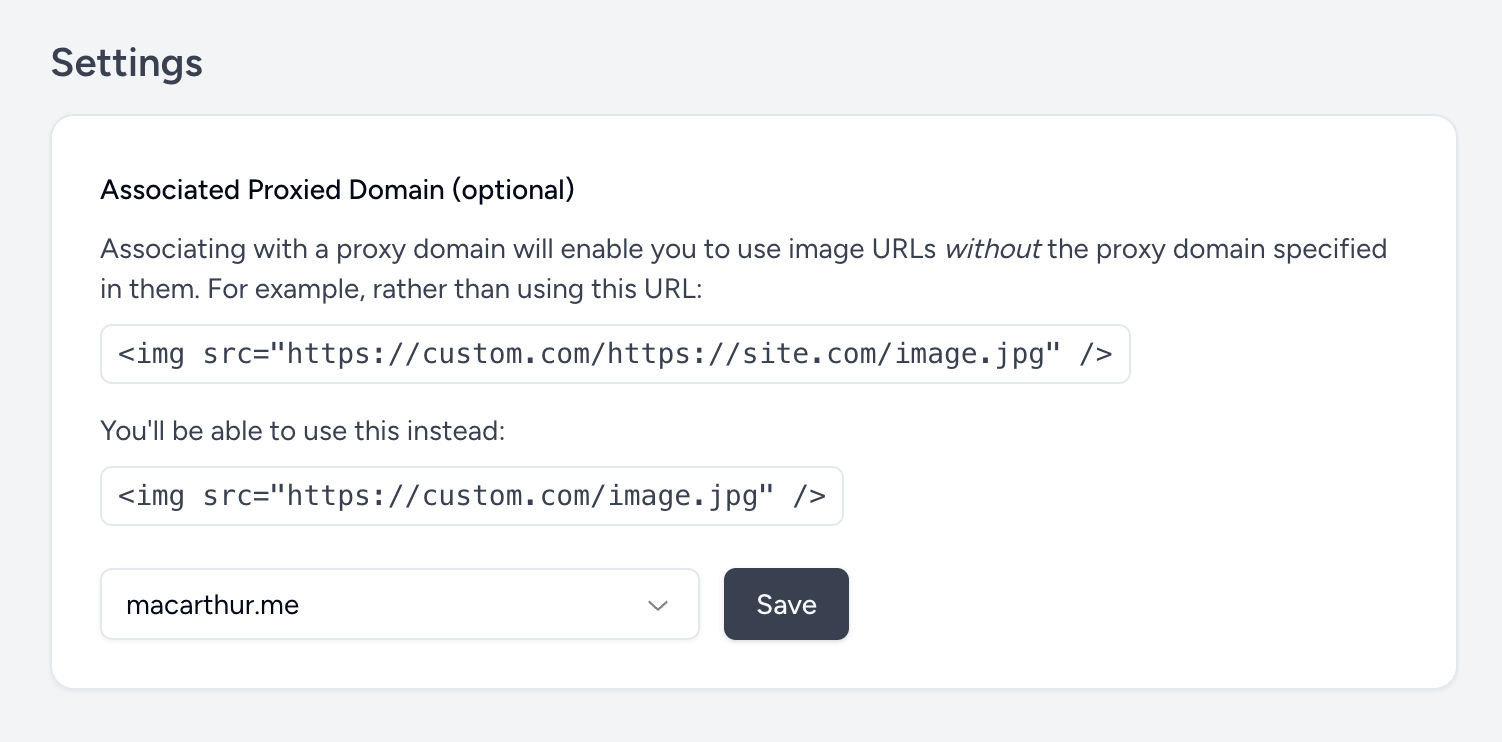
https://custom-domain.com/https://my-site.com/image.jpgTo simplify the URL even further, you can optionally hide the fact that the image is being proxied by associating your custom domain with one of your registered proxied domains on your account. When this association is made, you’ll be able to use this URL instead:
https://custom-domain.com/image.jpgBehind the scenes, PicPerf will know the source host of your image without needing it to be explicitly included in the URL. Here’s how to make that happen:
Step for Setting Up an Invisible Proxy
Section titled “Step for Setting Up an Invisible Proxy”Verify you’ve created a proxied domain.
Section titled “Verify you’ve created a proxied domain.”You can create one here. This must match the domain from where your images are normally served.
Navigate to your custom domain.
Section titled “Navigate to your custom domain.”Choose from your list of custom domains. If you haven’t already set one up, do so, which will also include making DNS updates.
Set an associated proxied domain.
Section titled “Set an associated proxied domain.”At the bottom of the page, you’ll see an “Associated Proxied domain” dropdown. Choose the proxied domain you created above and save it.
Update your image URLs.
Section titled “Update your image URLs.”From now, including your proxied domain in your image URLs will be totally optional. Whenever a request to your custom domain is made, PicPerf will know to automatically resolve it, and your iamge URLs can be a little cleaner.